How to add and edit users?
Note: Before adding a user creating designations is important, as it is mandatory information while adding/creating a user. Click here to know more about how to add/create designations?
In the “Settings” → Select the “Users & Designation” → click on the “Users” tab
Step 1: Click on the Add User button on the top right side of the screen.
Step 2: A drawer from the left side will appear, asking to fill in the employee's basic details like First Name, Last Name, Email, Date of Birth, Date of Joining, Phone, Gender, Role, Designation, and Team.
Note: The (*) marked fields are mandatory to fill.
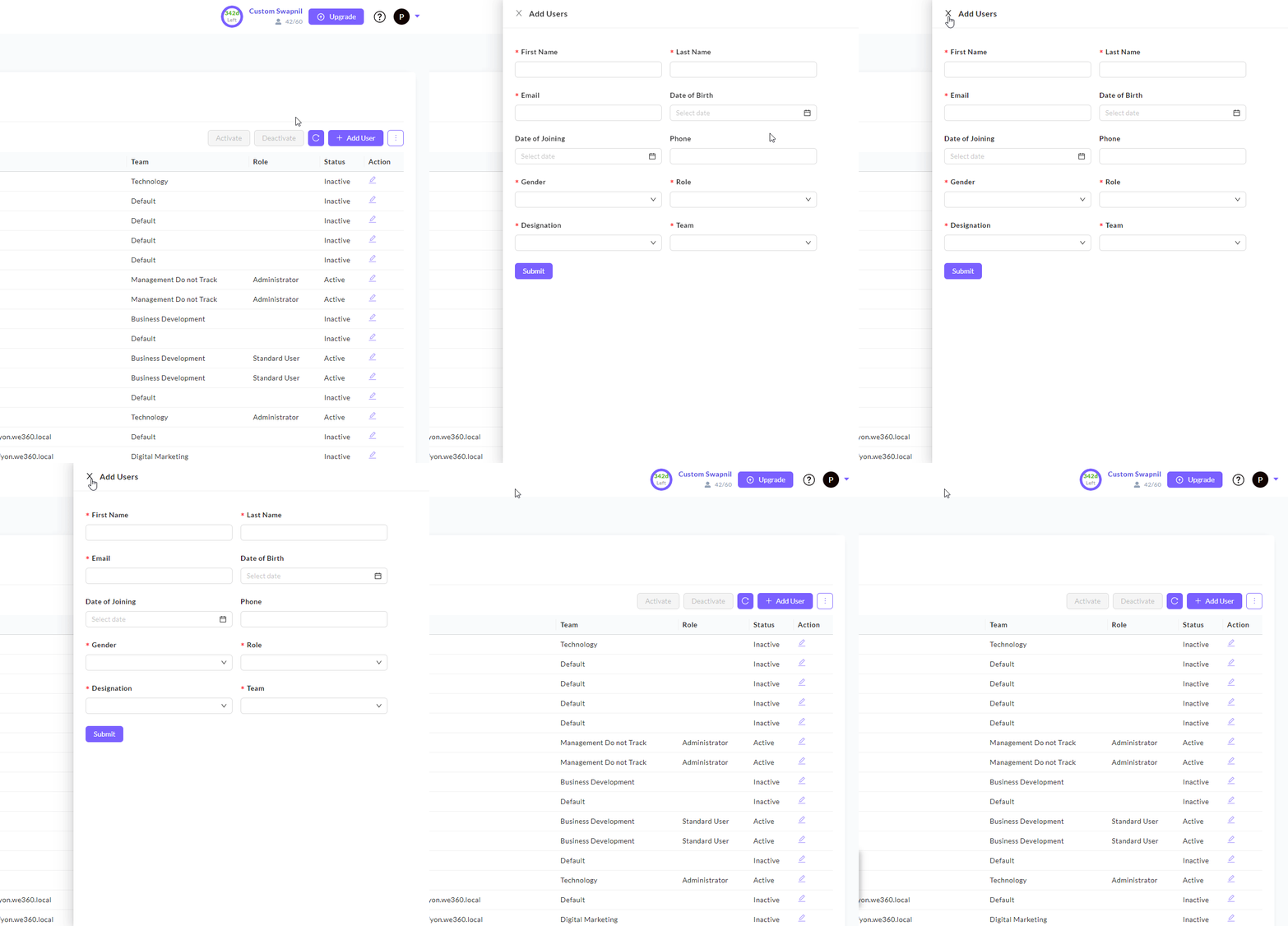
Note: Under the team dropdown, you will see “Default” as the primary team. Either you can add the user to the “Default” team or you can later move the user to a custom created team Click here to know more about how to add/create designations?
Step 3: After filling in the details, click the submit button to add a user to the respective team.
After clicking the submit button, the list will be updated with the added users representing the user’s Name, Email, Team, Role, and Status.

How to edit Users Profile?
For every user, there is an action button (denoted by kebab icon) to edit the user details. Click on the kebab icon and it will reveal a context menu with options “Deactivate” and “Modify User”. Click on the “Modify User”
By clicking on the “Modify User”, a drawer opens comprising basic details and user settings to edit.
Related Articles
How to add or edit designations?
How to add/create Designation? In the “Settings” → Select the “Users & Designation” → click on the “Designations” tab Step 1: When you click on the “Designations” tab, the list will be displayed below in a tabular format comprising the Name, ...Add users - Bulk import
Step 1: To import bulk users, click on the kebab menu icon ( ⋮ ) and then click on “Bulk Import” Step 2: A popup window will appear on which you see following things: Upload CSV file: To bulk import, click on the “Choose File” and select the csv file ...How to edit an application policy?
In this context, category labels (or just labels) correspond to the three buttons: "Productive," "Unproductive," and "Neutral." To adjust an application policy to your preferences, follow these easy steps: Navigate to the "Settings" located in the ...How to edit breaks?
To edit break, follow these steps: Step 1: Find the break you want to edit. Look for an action button associated with the break; it is typically represented by a pencil icon. Step 2: Click on the action button (pencil icon) for the desired break. A ...How to edit shifts?
To edit shifts, follow these steps: Step 1: Find the shift you want to edit. Look for an action button associated with the shift; it is typically represented by a pencil icon. Step 2: Click on the action button (pencil icon) for the desired shift. A ...