Stealth Installation Guide: Windows
Steps to install MyZen Stealth:
 Note: Please ensure that you do not rename the downloaded setup file before installation. Keeping it as is, with its original encoded name, is essential for proper installation.
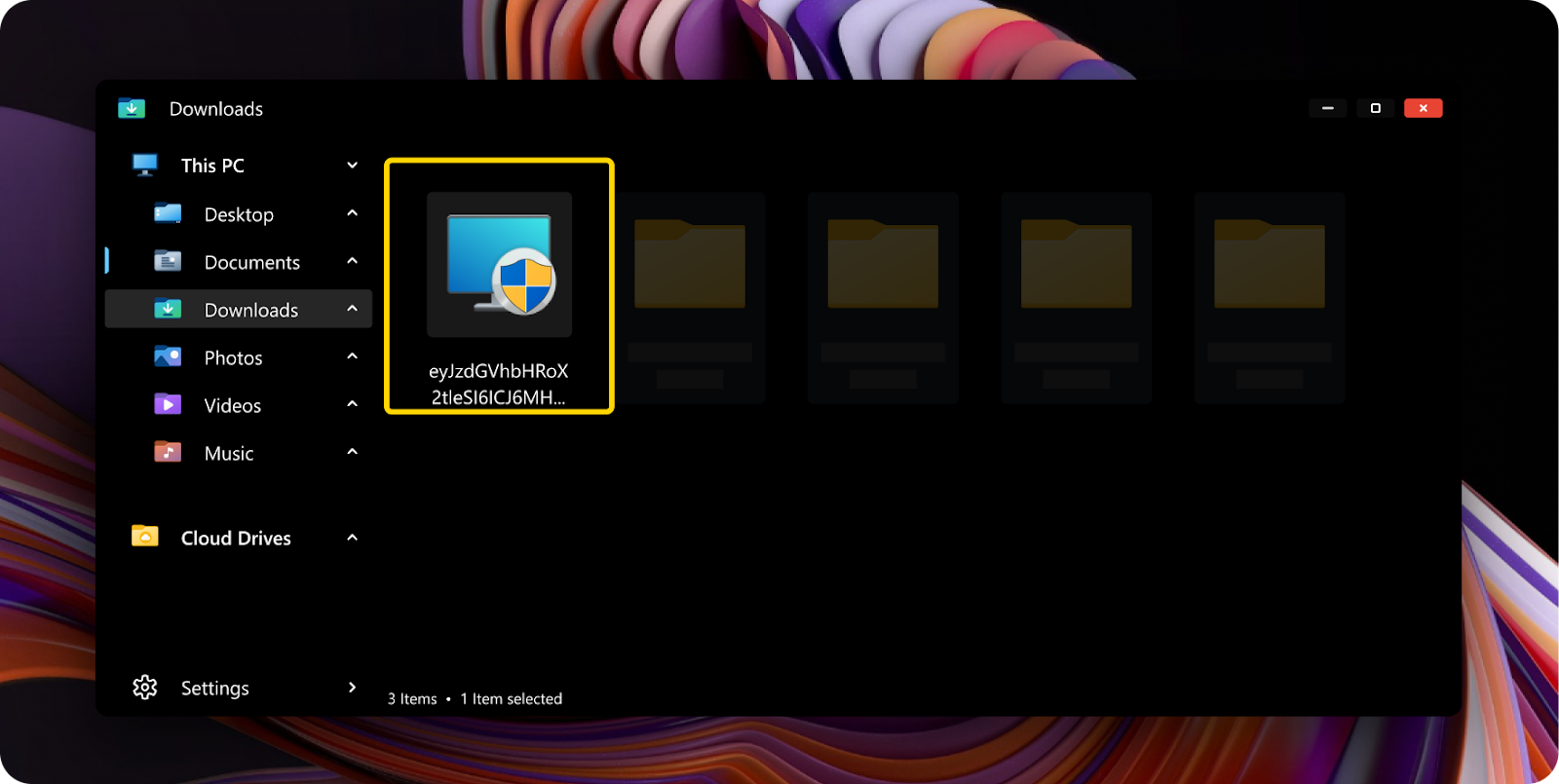
Step 1: Locate the setup file named "<encodedname>.exe" in your Download folder, and double-click on it to begin the installation process.
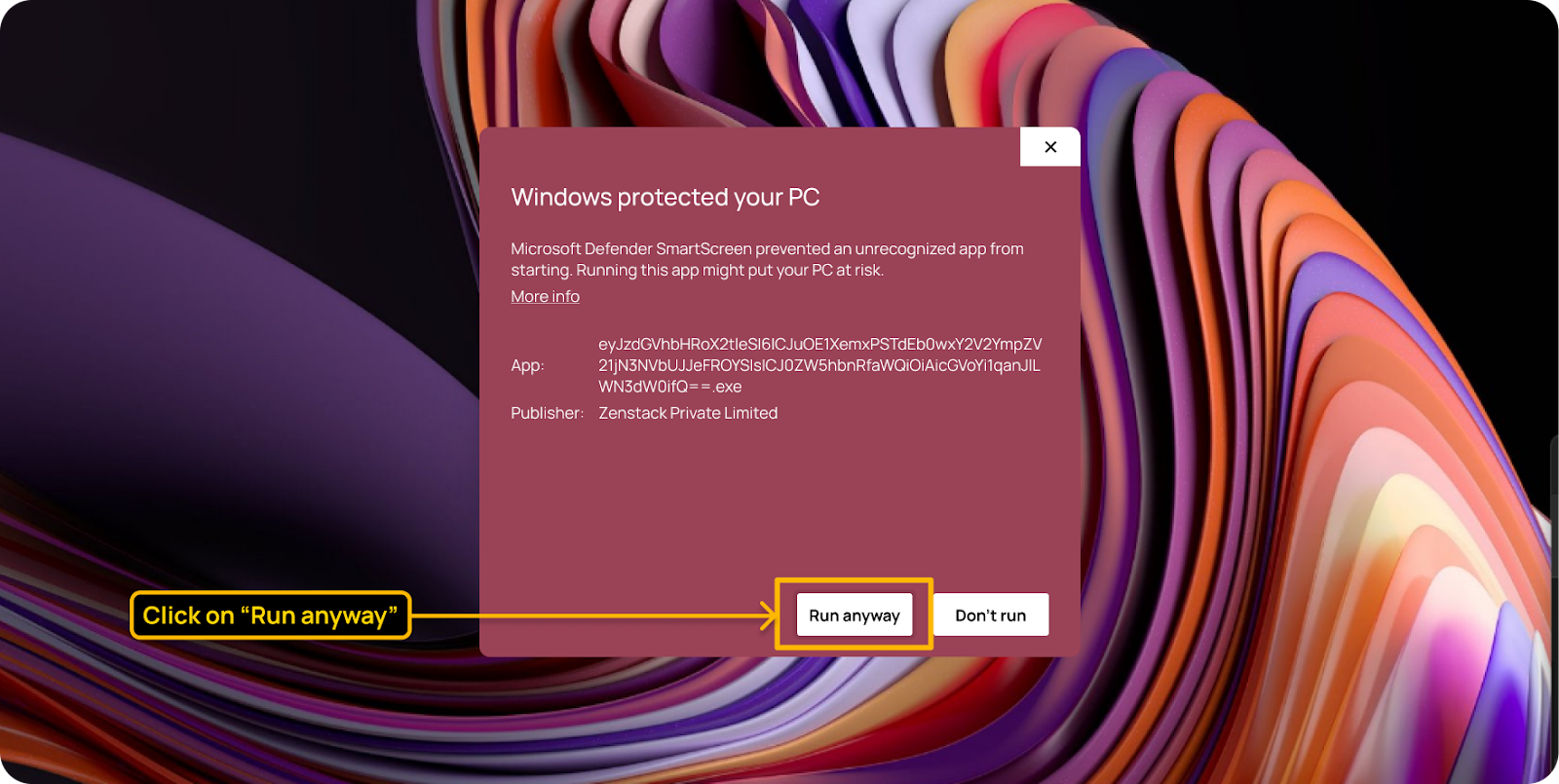
Step 2: A pop-up window will appear. Click on the "More info" text, as shown in the image below, to proceed further.

Step 3: This action will reveal the "Run anyway" button. Click on it to continue with the installation.
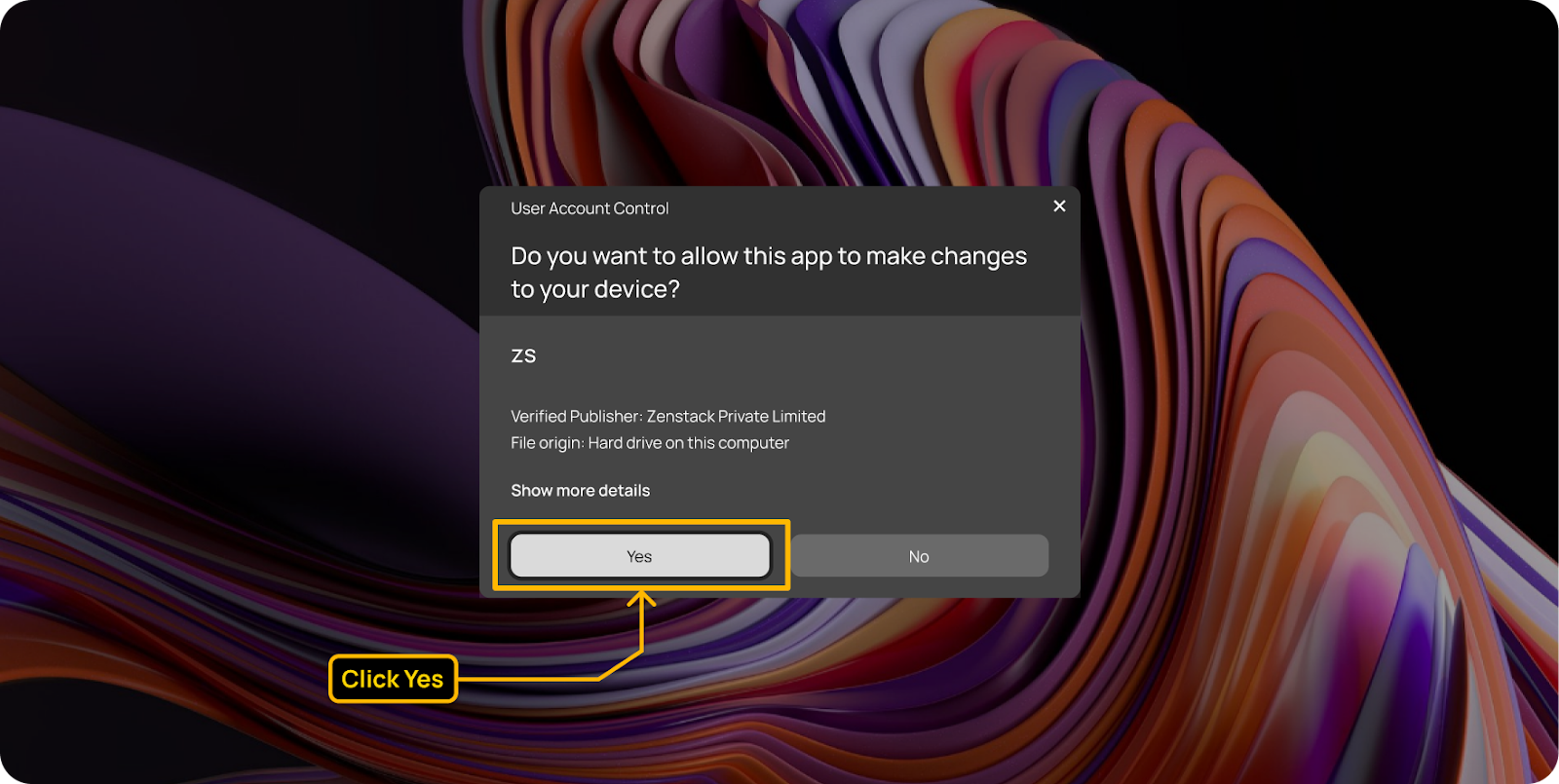
Step 4: Another pop-up window will appear, resembling the image provided below. Click "Yes" to confirm and initiate the installation process.
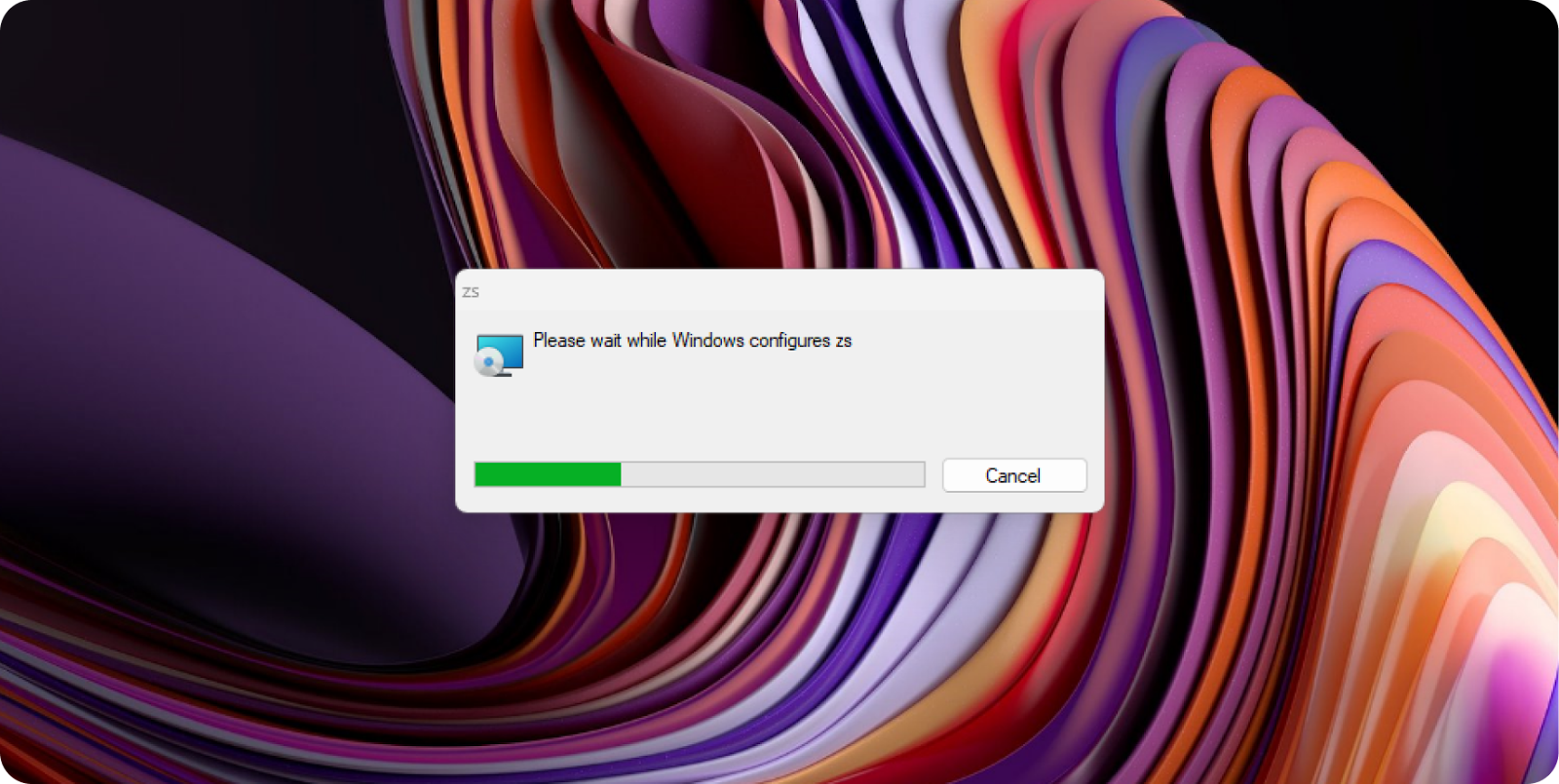
Step 5: Once MyZen Stealth is installed, please note that it will not automatically open any application since it is running in stealth mode.
By following these step-by-step instructions, you can successfully install Stealth on your Windows system.
Please view Installation tips article for more information.
Related Articles
MyZen Installation Guide: Windows
VSG-365.ai includes two interfaces. Interface 1, the MyZen desktop application, needs to be installed on all employee Windows systems. Interface 2 is a web application accessible to administrators. The employee application is called MyZen app and ...Myzen Deployment Guide
VSG-365.ai utilizes the Desktop Agent, Myzen, to gather digital workforce activity for analysis. Without an installed Agent, reports and dashboards will be empty. Deploying the VSG-365.ai Desktop App (Myzen) offers flexibility, accommodating various ...Guide to Getting Started with VSG-365.ai
Guide to Getting Started with VSG-365.ai: Maximizing Team Productivity and Well-being with VSG-365.ai Welcome to VSG-365.ai, where we elevate your team's productivity and wellness through insightful analytics. Here’s an extensive guide to help you ...Stealth Installation Guide: Linux
Requirements: Supported Systems: MyZen officially supports only Ubuntu LTS (20.04, 22.04, 24.04) and Ubuntu-derived distributions (e.g., Linux Mint) Wayland Compatibility: Limited support is currently available for Wayland. If Wayland is your ...Stealth Installation Guide: Mac
Steps to install Stealth on Mac: Note: Please ensure that you do not rename the downloaded setup file prior to installation. Keeping it as is, with its original encoded name, is essential for proper installation. Step 1: Locate the setup file named ...